Editing Translations
This page covers the full editing workflow: toggling edit mode, using the modal editor, previewing changes, and working with history.
Edit mode
Press Ctrl+Shift+E (or your configured shortcut) to toggle edit mode. All translatable strings on the page get highlighted with blue dashed outlines.
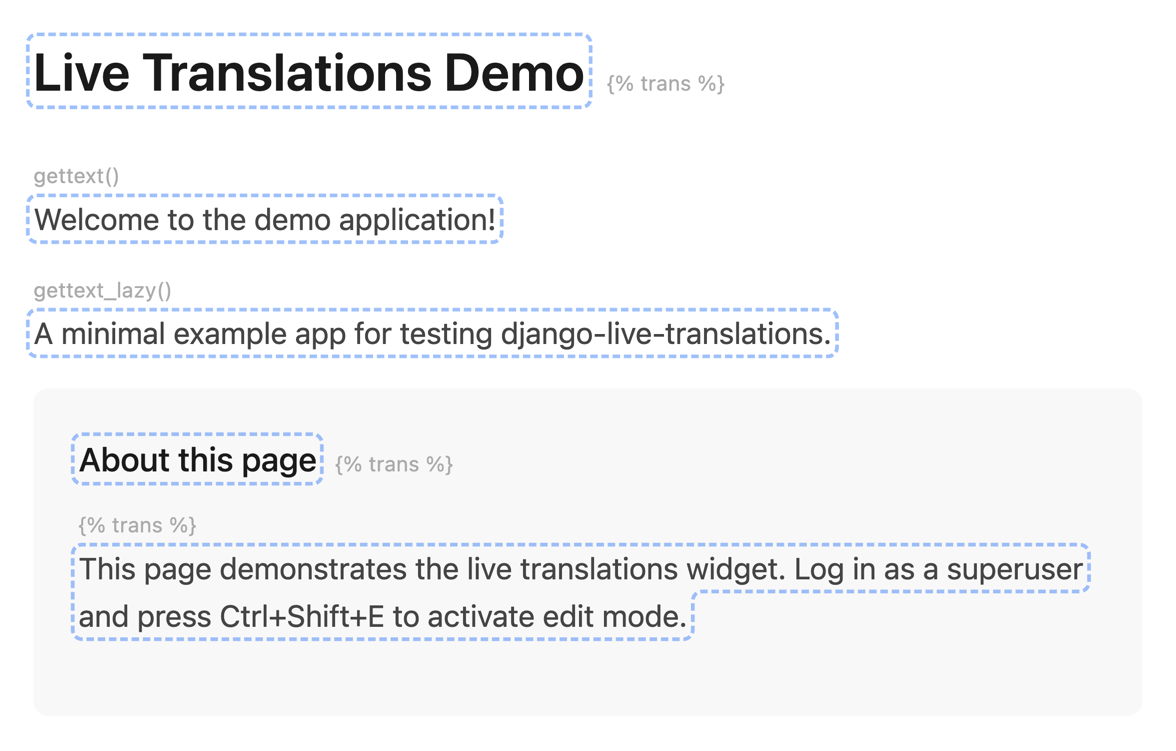
Translatable strings highlighted in edit mode.
Click any highlighted string to open the editor modal. Press Esc or click outside the modal to close it. Press Esc again to exit edit mode entirely.
The editor modal
The modal provides a tabbed editor with one tab per configured language.
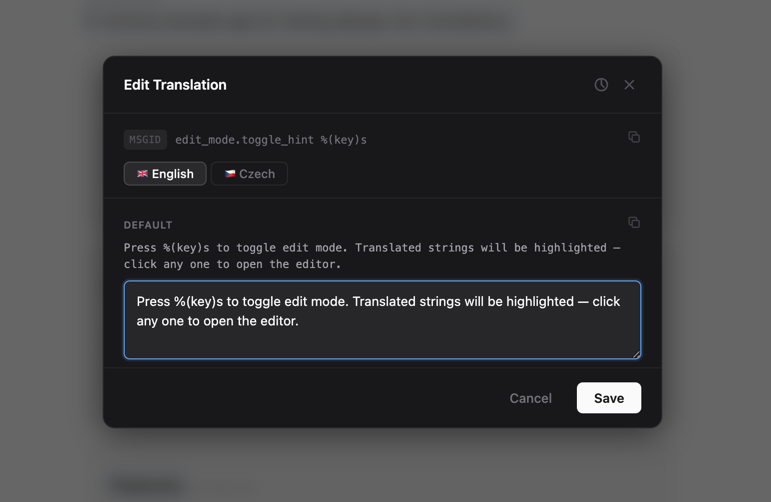
The multi-language editor modal.
Each language tab shows:
- Textarea for editing the translation
- PO file default (read-only) showing the baseline value from the
.pofile - Translator hint extracted from
.pofile comments (#.lines), when available - Active/inactive toggle controlling whether this translation is live
The modal header displays the original msgid with a copy button.
Saving
Click Save to persist changes across all tabs. On save:
- The backend stores the translations (to
.pofiles or database, depending on your backend) - The page updates in real-time to reflect the new translation, no reload needed
- The action is recorded in edit history
Deleting an override
Click Delete Override to revert a language to its .po file default. This removes the database entry (DB backend) or the pending override comment (PO backend).
Plural translations
When editing a plural string (from ngettext, npgettext, or {% blocktranslate count %}), the modal shows multiple textareas per language tab, one for each plural form. The number of forms depends on the language: English has 2 (singular, plural), Czech has 3, Arabic has 6.
Each form is labeled "Form 0", "Form 1", etc. Form 0 is the singular form.
Note
After saving a plural translation, the page reloads automatically. The widget cannot determine which plural form is currently displayed without the original number argument, so a live DOM update is not possible for plurals.
Validation
The editor validates translations before saving. Two types of validation run:
Placeholder validation checks that format strings like %(name)s and {name} match between the original msgid and each translation. For plural translations, each form is validated against the union of placeholders from both msgid and msgid_plural. This is enforced server-side. Mismatched placeholders block the save.
HTML structure validation checks for unclosed, mismatched, or stray tags in translations that contain HTML. This is client-side only and non-blocking.
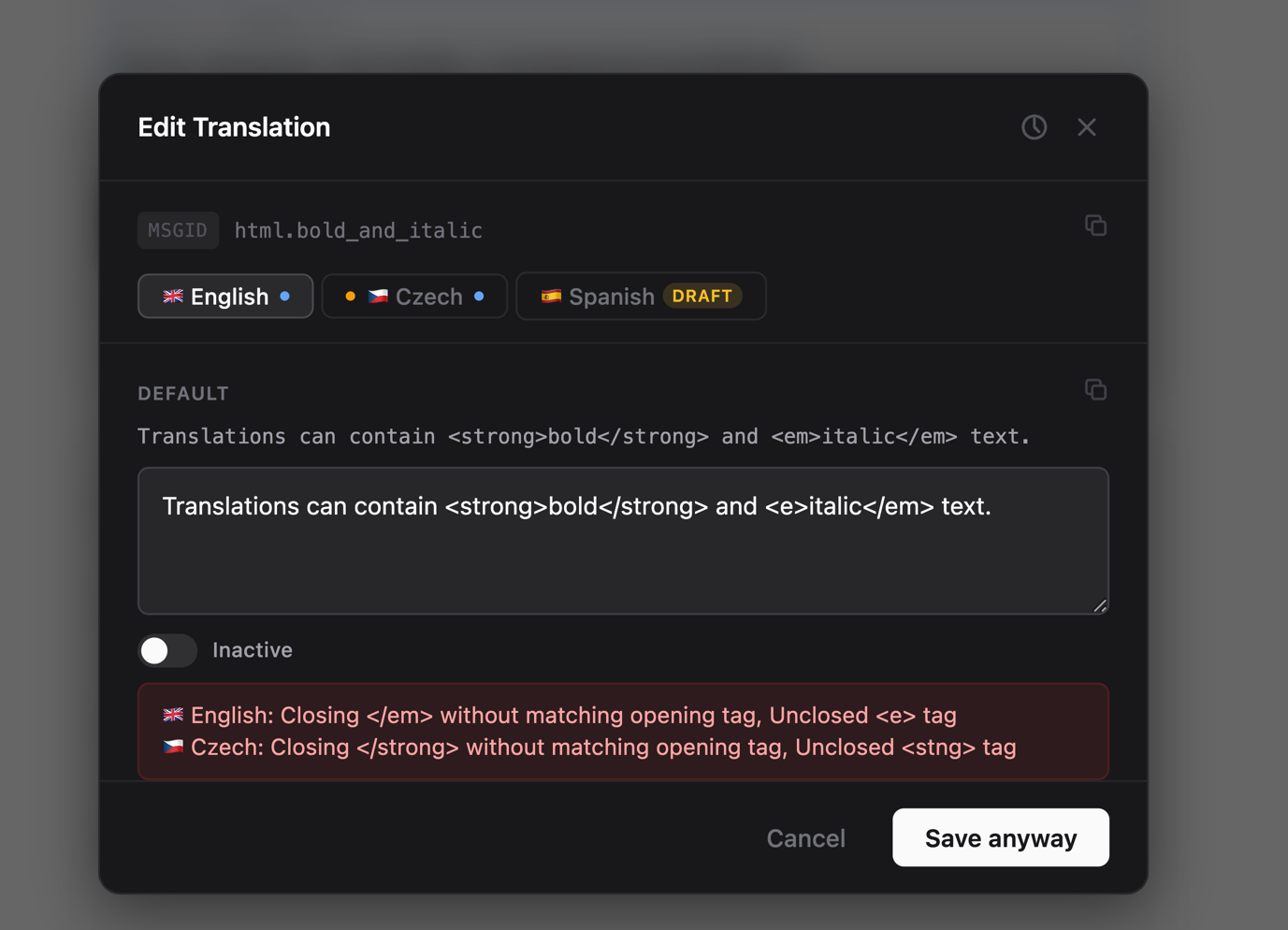
HTML validation warns about tag issues but allows saving with "Save anyway".
When HTML issues are detected, the Save button changes to Save anyway. Editing the textarea clears the warning.
Tip
HTML validation is a convenience to catch typos, not a security boundary. Translators are trusted users who may intentionally use unconventional markup.
Preview mode
Press Ctrl+Shift+P to toggle preview mode. This overlays inactive translations on the page with amber borders, letting you review pending changes before activating them.
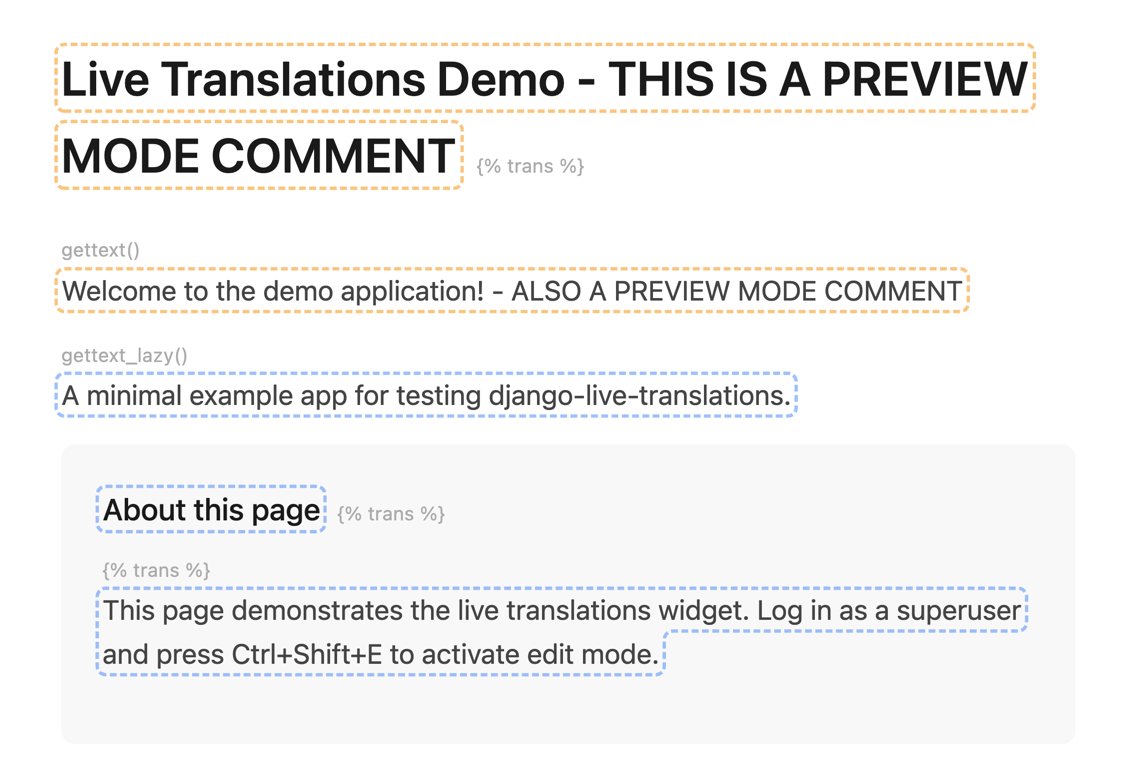
Inactive translations shown with amber borders in preview mode.
Preview mode is gated by the same permission check as edit mode.
Bulk activation
In preview mode, you can activate multiple translations at once:
- Enter preview mode (Ctrl+Shift+P)
- Hold Shift and click on inactive translations to select them
- A floating action bar appears with the count and an "Activate" button
- Click Activate to make all selected translations live
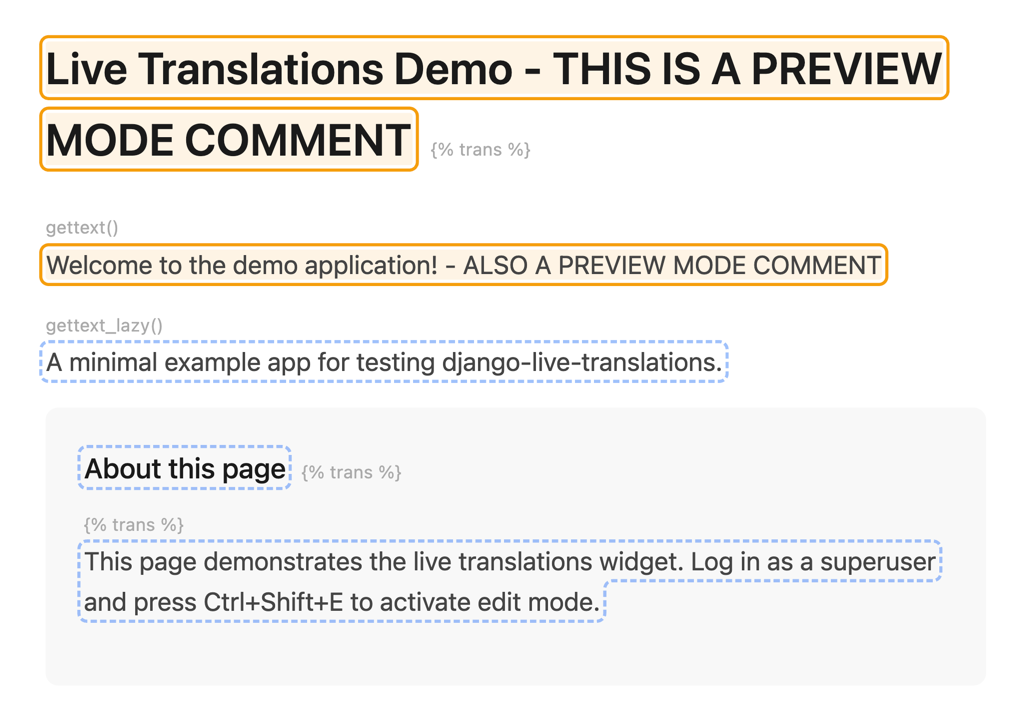
Selecting translations for bulk activation in preview mode.
Edit history
The editor modal includes a history panel showing all previous edits for the current string.
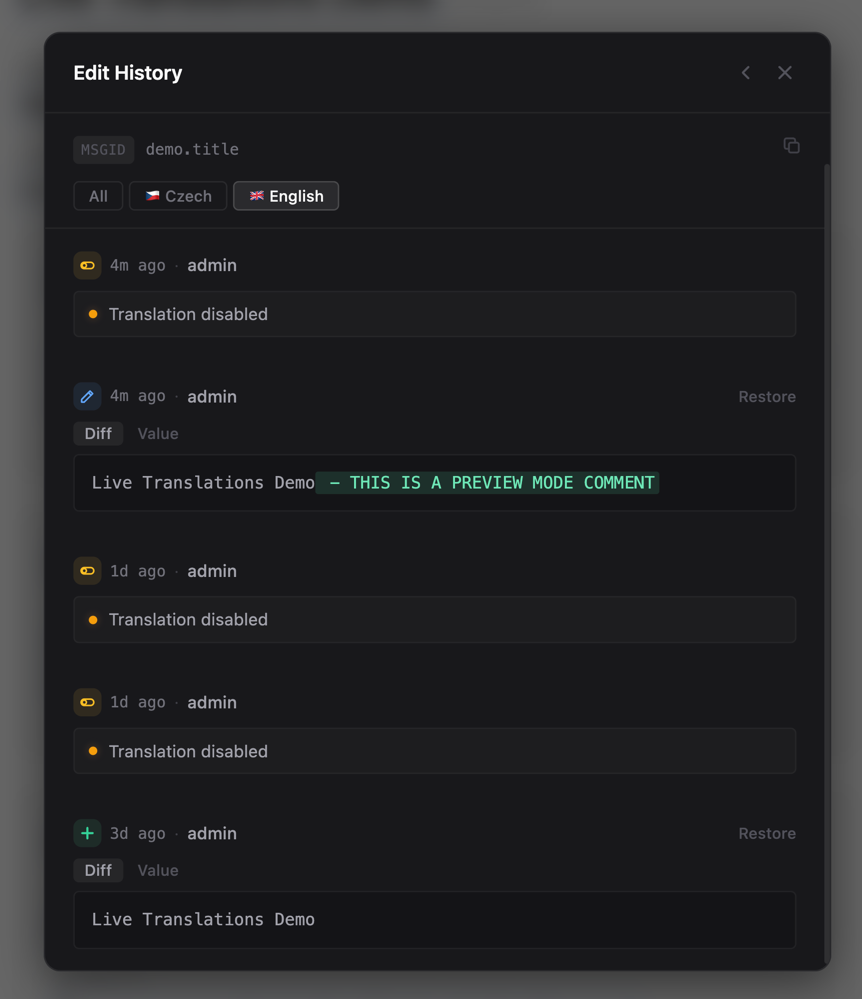
Edit history with word-level diffs and restore buttons.
Each history entry shows:
- Timestamp and the user who made the change
- Action type: create, update, delete, activate, or deactivate
- Word-level diff highlighting additions and deletions
- Restore button to revert to that value
History is stored in the TranslationHistory database table and is available with both backends. If the table doesn't exist (migrations not run), history is silently skipped.
Hint bar
A draggable bar appears at the bottom of the page showing available keyboard shortcuts. Drag it to reposition. Its position is saved to localStorage and persists across page loads.
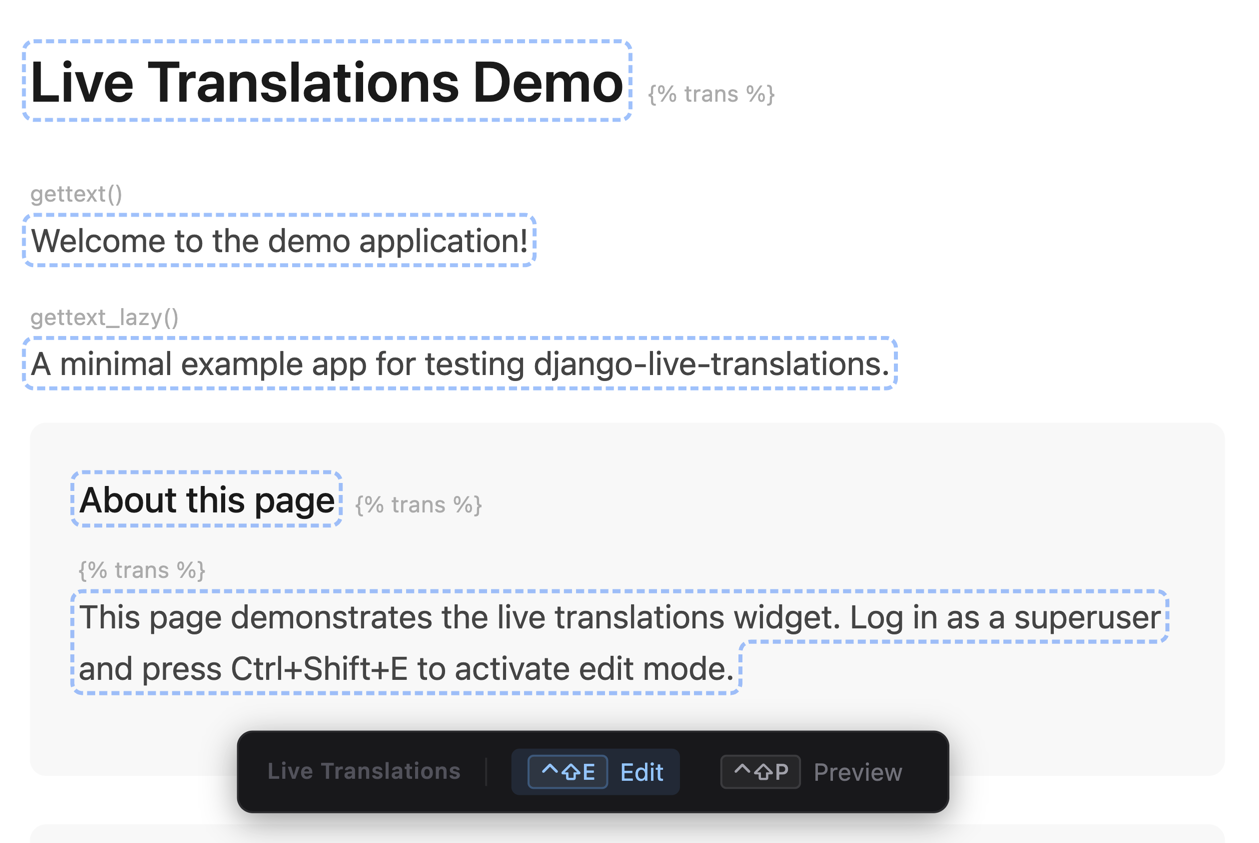
The hint bar shows available keyboard shortcuts.
Language switcher
When multiple languages are configured, the hint bar includes a language dropdown.
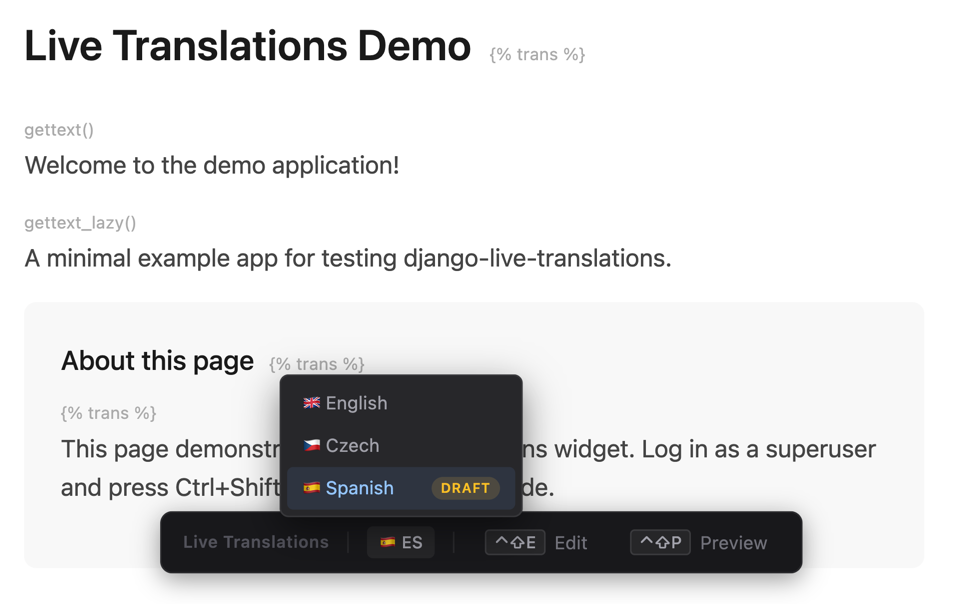
Language switcher with a draft language marked.
Switching behavior depends on the language type:
- Published languages: navigates to the language-prefixed URL (e.g.
/de/about/) ifi18n_patternsis detected, or sets thedjango_languagecookie and reloads - Draft languages: sets a cookie override (
lt_lang) and reloads. The middleware renders the page in the draft locale without URL changes.
Draft languages are marked with an amber "Draft" badge.
Dynamic content (htmx)
Translations in dynamically loaded content work automatically with htmx. When htmx swaps in new HTML, the widget detects the swap and processes any translatable strings in the new content. Edit mode highlights, click-to-edit, and preview mode all work on dynamically loaded content the same as on the initial page.
For other dynamic content mechanisms (fetch + innerHTML, web components, etc.), call window.__LT_RESCAN__() after inserting the HTML. See How It Works for details.
Keyboard shortcuts
| Shortcut | Action | Configurable |
|---|---|---|
| Ctrl+Shift+E | Toggle edit mode | Yes |
| Ctrl+Shift+P | Toggle preview mode | Yes |
| Esc | Close modal or exit edit mode | No |
| Shift + click | Select for bulk activation (preview mode) | No |